

Critical Adobe PDF Zero‑Day Patch: What Small Businesses and Solo Law Firms Must Do Now to Stay Secure
PDFs sit at the heart of legal and professional services workflows—engagement letters, pleadings, discovery, closing binders, invoices, training manuals. That’s exactly why a newly patched Adobe Acrobat/Reader zero‑day matters right now. On April 11, 2026, Adobe shipped emergency updates addressing CVE‑2026‑34621, a critical vulnerability actively exploited via malicious PDFs. For small and boutique law firms, solo practices, and professional service teams, the stakes are immediate: client confidentiality, business continuity, and ethical obligations. This article explains what happened, why it’s urgent, and the precise steps to take in the next 24 hours, 72 hours, and the coming weeks to lock down your environment without stalling billable work.
- What happened—and why this zero‑day is different
- Immediate 24‑hour response plan (patch, verify, contain)
- 72‑hour validation: prove coverage and close gaps
- Harden PDF workflows in law firm environments
- Which Adobe track do you run? Target versions and update paths
- Operations playbook: governance, communications, and evidence
- FAQs for attorneys and operations managers
- Bottom line
What happened—and why this zero‑day is different
Adobe’s security bulletin APSB26‑43 confirms active exploitation of a critical flaw in Acrobat and Acrobat Reader (CVE‑2026‑34621). The issue—“prototype pollution” in JavaScript handling—can enable arbitrary code execution when a user opens a crafted PDF. Affected versions include Acrobat/Reader DC 26.001.21367 and earlier, and Acrobat 2024 (Classic) 24.001.30356 and earlier. The fixed builds are 26.001.21411 (DC Continuous) and 24.001.30362 on Windows / 24.001.30360 on macOS (Classic 2024). See Adobe’s advisory for details and release notes links: APSB26‑43.
“Adobe is aware of CVE‑2026‑34621 being exploited in the wild.” — Adobe Security Bulletin APSB26‑43
Independent reporting indicates the exploit campaign has run for months, with first samples surfacing in late 2025—making this not a theoretical risk but a proven initial‑access vector against everyday PDF handling. See coverage by TechCrunch and SecurityWeek.

Immediate 24‑hour response plan (patch, verify, contain)
For small firms and solo practices, the right move is decisive and simple: update every instance of Acrobat/Reader, confirm the version, and reduce exposure during the rollout.
1) Patch endpoints now
- Target fixed versions per Adobe:
- Acrobat DC / Reader DC (Continuous): 26.001.21411
- Acrobat 2024 (Classic): 24.001.30362 on Windows, 24.001.30360 on macOS
Source: Adobe APSB26‑43.
- How to update manually: open Acrobat or Reader > Help > Check for Updates. If you distribute via management tools (Microsoft Intune, Microsoft Configuration Manager/SCCM, Jamf, or your RMM), push the newest packages immediately and force a restart if prompted.
2) Verify the version on every device
- Windows/macOS desktop: Acrobat/Reader > Help > About Acrobat/Reader. Confirm the exact build number matches the target fixed versions above.
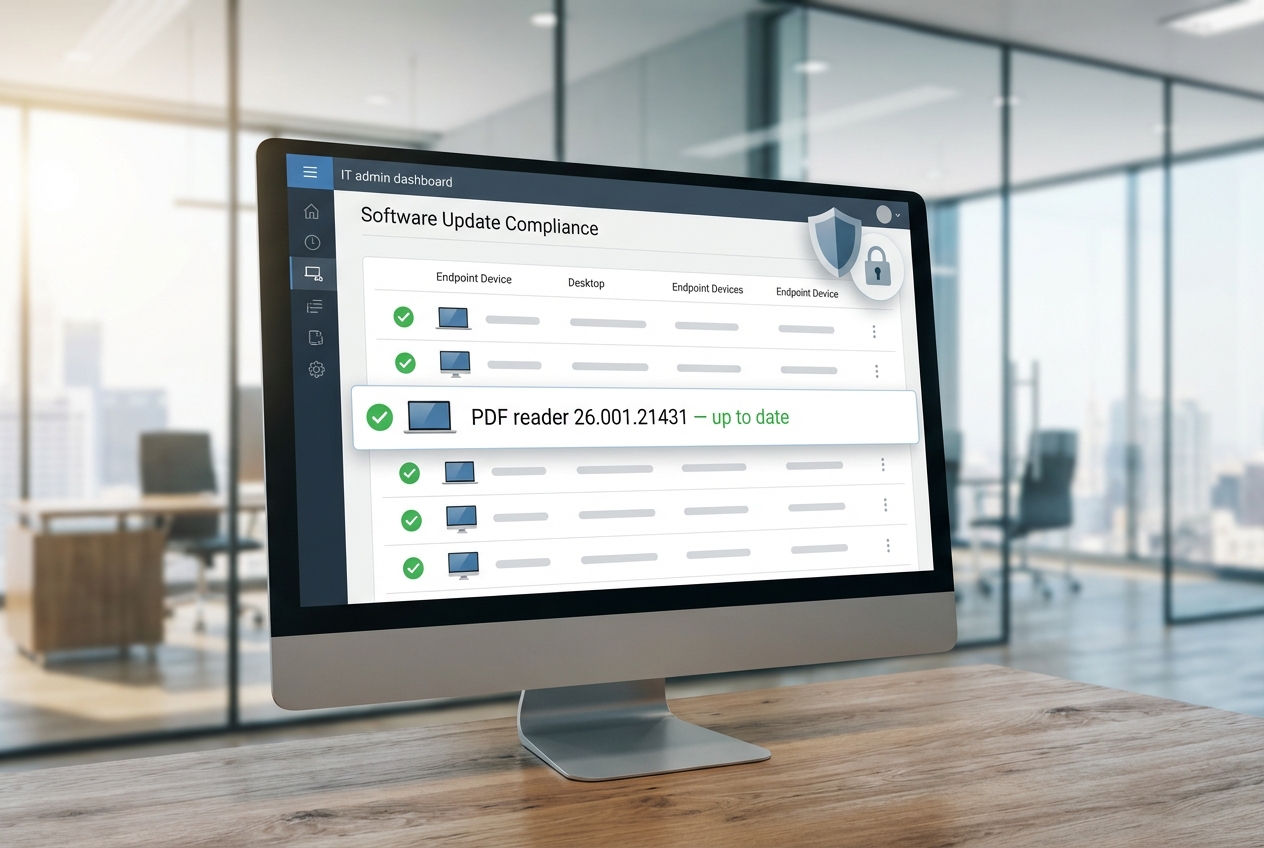
- If you manage devices, export an inventory from your management console filtered on “Acrobat” and “Reader,” then sort by version to find stragglers.
3) Reduce risk during rollout (24 hours)
- Advise staff to avoid opening PDFs from unknown senders and to route any unexpected attachments through a pre‑set review channel (e.g., shared mailbox “securityreview@yourfirm.com”).
- Temporarily block Acrobat/Reader from launching child processes (PowerShell, cmd, wscript) via your EDR/NGAV policy until patch saturation is confirmed.
- Enable or re‑assert Protected Mode/Enhanced Security in Acrobat/Reader Preferences (see “Harden PDF workflows” below).

72‑hour validation: prove coverage and close gaps
After the initial push, shift from reactive to verifiable. Your goal at 72 hours is to demonstrate—if asked by clients, insurers, or your own partners—that the firm is protected.
A concise validation checklist
- Export a firm‑wide software inventory showing Acrobat/Reader versions and systems count per version.
- Document the change window (start/end times), the exact packages deployed, and the enforcement settings (e.g., reboot, user deferral).
- Spot‑check 10–20% of endpoints across roles (partners, associates, paralegals, staff) to confirm the About dialog reflects patched builds.
- Confirm remote and BYOD coverage (laptops at home, traveling attorneys). Require attestation and provide a simple update walkthrough.
- Retain patch evidence (exports, screenshots) in your security governance folder for at least 12–24 months.
If you discover holdouts
- Quarantine the device from email and file shares until patched.
- Route inbound PDFs to a sandboxed viewer or convert to images server‑side for the affected user (temporary workaround).
- Notify the matter team lead if access may be briefly impacted; provide a specific ETA to restore normal operations.
Harden PDF workflows in law firm environments
Patching stops the current exploit chain, but resilient firms also reduce the blast radius of future PDF bugs. Prioritize these settings and process changes:
Lock down Acrobat/Reader
- Enable Protected Mode (Windows) and Protected View for files from the internet.
- Turn on Enhanced Security and restrict file system/network locations Acrobat can access.
- Disable or strictly limit JavaScript in PDFs (Preferences > JavaScript) unless your practice relies on it; if so, whitelist specific trusted workflows.
- Block launching non‑PDF attachments or external applications from PDFs.
Control where PDFs enter the firm
- Require clients to upload documents via your secure client portal (avoid direct email attachments for large or unsolicited files).
- Configure your email security gateway to flag or quarantine PDFs with embedded JavaScript or known‑bad indicators.
- Train staff to verify unexpected PDFs out‑of‑band (e.g., call the sender) before opening.
Instrument for detection and containment
- In your EDR, alert when Acrobat/Reader spawns scripting or system utilities (powershell.exe, cmd.exe, wscript.exe), especially from user‑profile temp paths.
- Monitor for unusual network egress immediately after PDF opens (sudden connections to rare domains or IPs).
- Enable controlled folder access or equivalent to block unauthorized encryption or data exfiltration behaviors.
Which Adobe track do you run? Target versions and update paths
Firms often mix tracks across devices. Use this table to normalize on the fixed builds confirmed by Adobe and to align update methods with your environment size.
| Product/Track | Affected Versions | Patched Version | Where to Check | How to Update |
|---|---|---|---|---|
| Acrobat DC / Reader DC (Continuous) | 26.001.21367 and earlier | 26.001.21411 | Help > About Acrobat/Reader | Help > Check for Updates; or push via Intune/SCCM/Jamf/RMM |
| Acrobat 2024 (Classic) | 24.001.30356 and earlier | Windows: 24.001.30362; macOS: 24.001.30360 | Help > About Acrobat | Deploy the specific Classic installers to matching OS via management tools |
Reference: Adobe APSB26‑43 (April 11, 2026; updated April 12, 2026).
Operations playbook: governance, communications, and evidence
Small firms can move faster than enterprises—use that to your advantage. Here’s a streamlined framework tailored for managing critical software emergencies without derailing matters or cash flow.
Zero‑Day Triage Framework (ZTF) for small legal teams
- Decide (Hour 0–2): Confirm the advisory, affected versions, and patched builds from the vendor. Assign an Incident Coordinator (often the operations manager or managing partner) and a Technical Lead (internal IT or MSP).
- Deploy (Hour 2–12): Push updates firm‑wide. Enforce reboots if required. Communicate a simple “why this matters” note to attorneys and staff with a 15‑minute update window.
- Defend (Hour 0–24): Temporarily tighten EDR policies on Acrobat/Reader child processes. Heighten email filtering on PDFs. Remind staff to verify unexpected files.
- Document (Hour 12–48): Capture before/after inventories, screenshots of About dialogs, and deployment reports. File all evidence under a dated “Security/Patch/CVE‑2026‑34621” folder.
- Demonstrate (Hour 48–72): Prepare a one‑page summary: what happened, what the firm did, coverage percentage, residual risks, and next steps. Share with leadership and retain for insurance/audit requests.
Communications you can reuse
- Attorney/staff memo: 2–3 paragraphs, plain language, with a concrete action (“Keep Acrobat open after the prompt to complete the update; expect one restart”).
- Client note (on request): 1 paragraph: acknowledge vendor vulnerability, confirm same‑day patch, state no evidence of compromise in your environment, and outline defense‑in‑depth controls.
- Vendor/outsourced staff: Require a confirmation that they are on the patched versions where they handle your PDFs.
Choosing a patch deployment approach
| Method | Pros | Trade‑offs | Best for |
|---|---|---|---|
| Manual update (Help > Check for Updates) | No tooling needed; immediate | Unverified coverage; user‑dependent | Solo practitioners; urgent stopgap |
| Auto‑update (built‑in) | Low overhead | May lag; not auditable alone | Very small teams with light IT |
| Endpoint management (Intune/SCCM/Jamf/RMM) | Rapid, verifiable, reportable | Requires setup and packaging | Firms with 5+ devices or compliance needs |
FAQs for attorneys and operations managers
Is this only a Windows problem?
No. Adobe’s advisory covers Windows and macOS for both Acrobat/Reader DC (Continuous) and Acrobat 2024 (Classic). Confirm your platform and track, then patch to the specified versions. Source: APSB26‑43.
We already patched in March. Are we safe?
Not necessarily. This zero‑day was addressed on April 11, 2026, and is separate from earlier March updates. Check that you are on 26.001.21411 (DC Continuous) or 24.001.30362 Windows / 24.001.30360 macOS (Classic 2024). Source: APSB26‑43.
Could simply opening a malicious PDF compromise a system?
Yes—this is why it is classified as a zero‑day exploited in the wild. Opening a crafted PDF could trigger code execution in vulnerable builds. See reporting from TechCrunch and SecurityWeek, and Adobe’s confirmation in APSB26‑43.
We rely on PDF forms with JavaScript. Should we disable JavaScript?
For most firms, disabling JavaScript materially reduces attack surface. If your practice area requires PDF JavaScript (certain government or legacy forms), consider enabling it only for trusted files and locations while keeping Protected Mode/Enhanced Security on. Pair this with stronger detection (EDR rules on Acrobat/Reader child processes).
What proof should we keep for clients or insurers?
- An export of all endpoints showing Acrobat/Reader versions and a coverage percentage.
- Screenshots of About dialogs for sample endpoints.
- Deployment/Change tickets with timestamps and patch package identifiers.
- A 1‑page summary of actions taken within 72 hours.
Bottom line
Zero‑days in everyday tools like Adobe Acrobat/Reader are why security is a process, not a project. The good news: small and boutique firms can out‑execute larger organizations by moving quickly and documenting well. Today, that means patching to 26.001.21411 (DC Continuous) or 24.001.30362/24.001.30360 (Classic 2024), verifying coverage across every device (including remote and BYOD), tightening Acrobat/Reader protections, and proving your work with clean evidence. Do those four things this week and you’ll dramatically reduce the risk that a malicious PDF can derail a matter—or your firm. For the latest versions and guidance, start with Adobe’s advisory: APSB26‑43, with additional context from TechCrunch and SecurityWeek.
Ready to explore how you can streamline your processes? Reach out to A.I. Solutions today for expert guidance and tailored strategies.